Merchant Platform
Merchant Platform is online website platform for merchant cash check transaction/download report.
Please see at https://merchant.ksher.net
We also have application for check transaction, please check at Ksher Boss Pro Page
How to Login
-
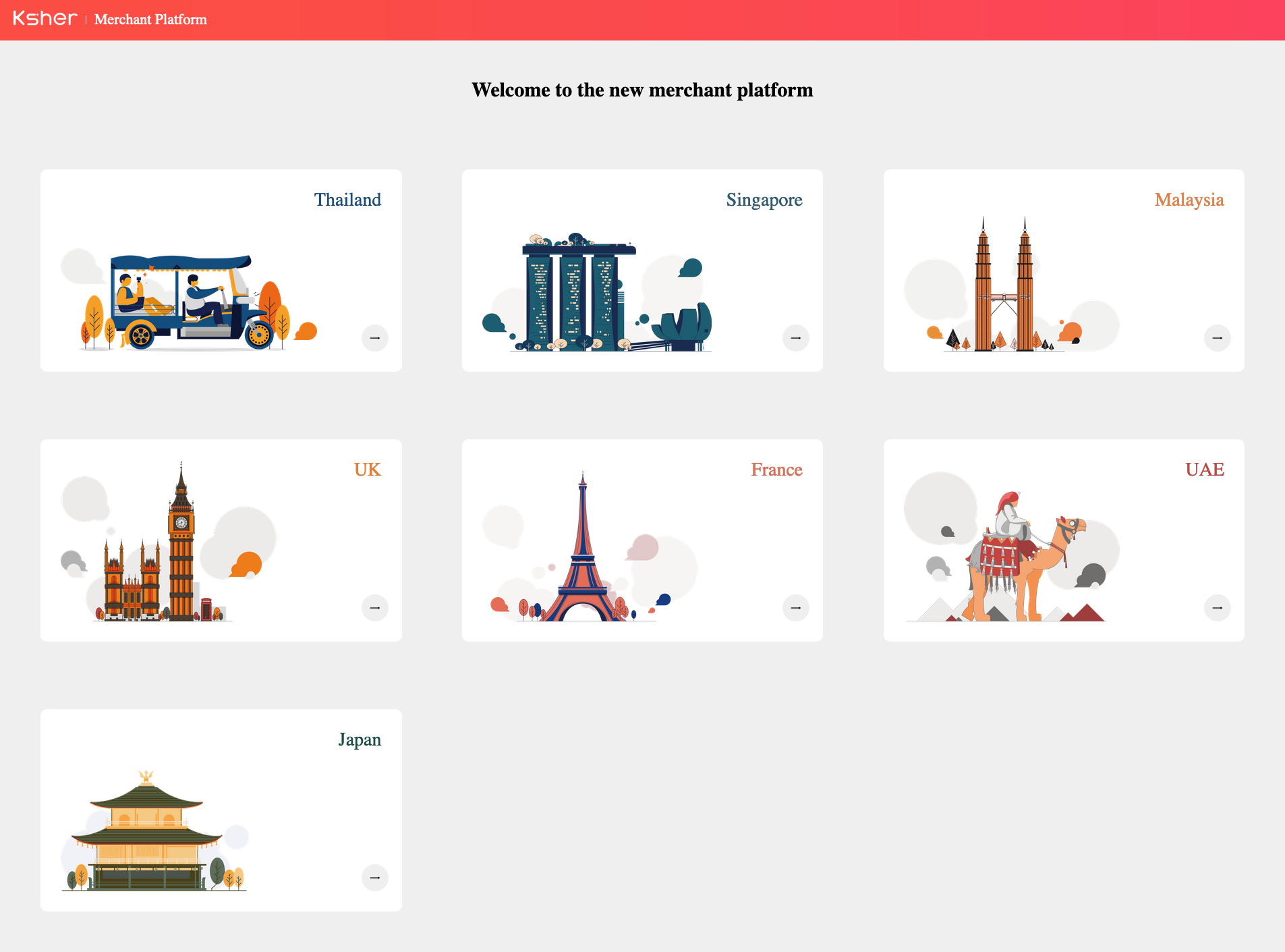
goto https://merchant.ksher.net and select your country account.
-
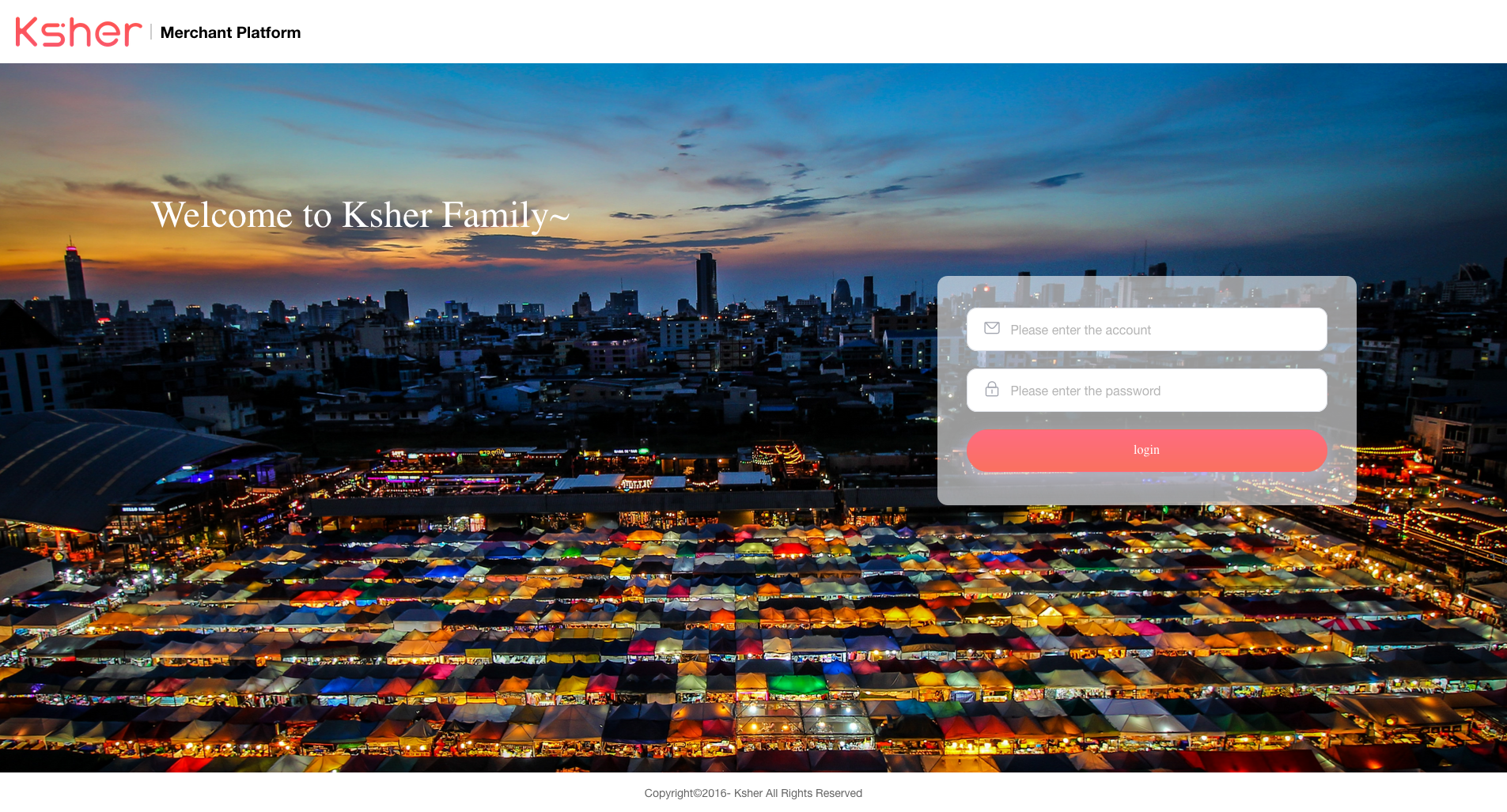
Enter your username and password you receive.
Home Page
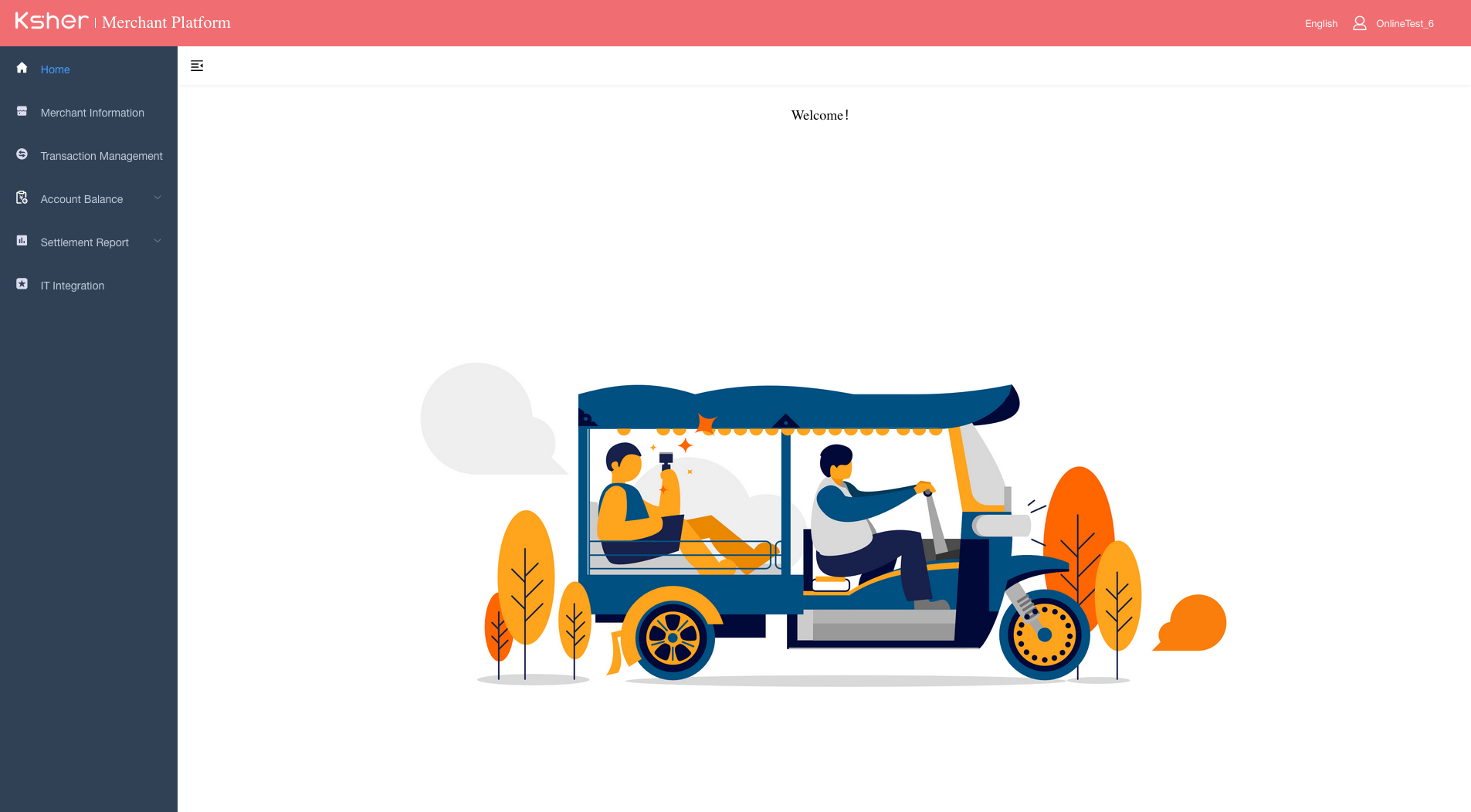
After login general account will include following Menu.
-
Checking all of merchant’s registered details such as company name, mobile number, registered address, email address as well as payment channels with MDR commission fee
-
Checking transaction status both real-time and trace back
-
Generating transaction report as an excel file
-
Checking settlement details such as transaction amount, MDR commission fee, VAT and tax invoice number
-
Downloading settlement report as an excel file
-
This feature will use for payout. In case merchant not use payout it will not display. **
-
Check the payout balance amount
-
-
Downloading and resetting merchant’s private key to integrate with merchant’s website/online platform to receive payments from customers.
Merchant Information
Merchant information Menu is mainly used for checking all of merchant’s essential registered details.
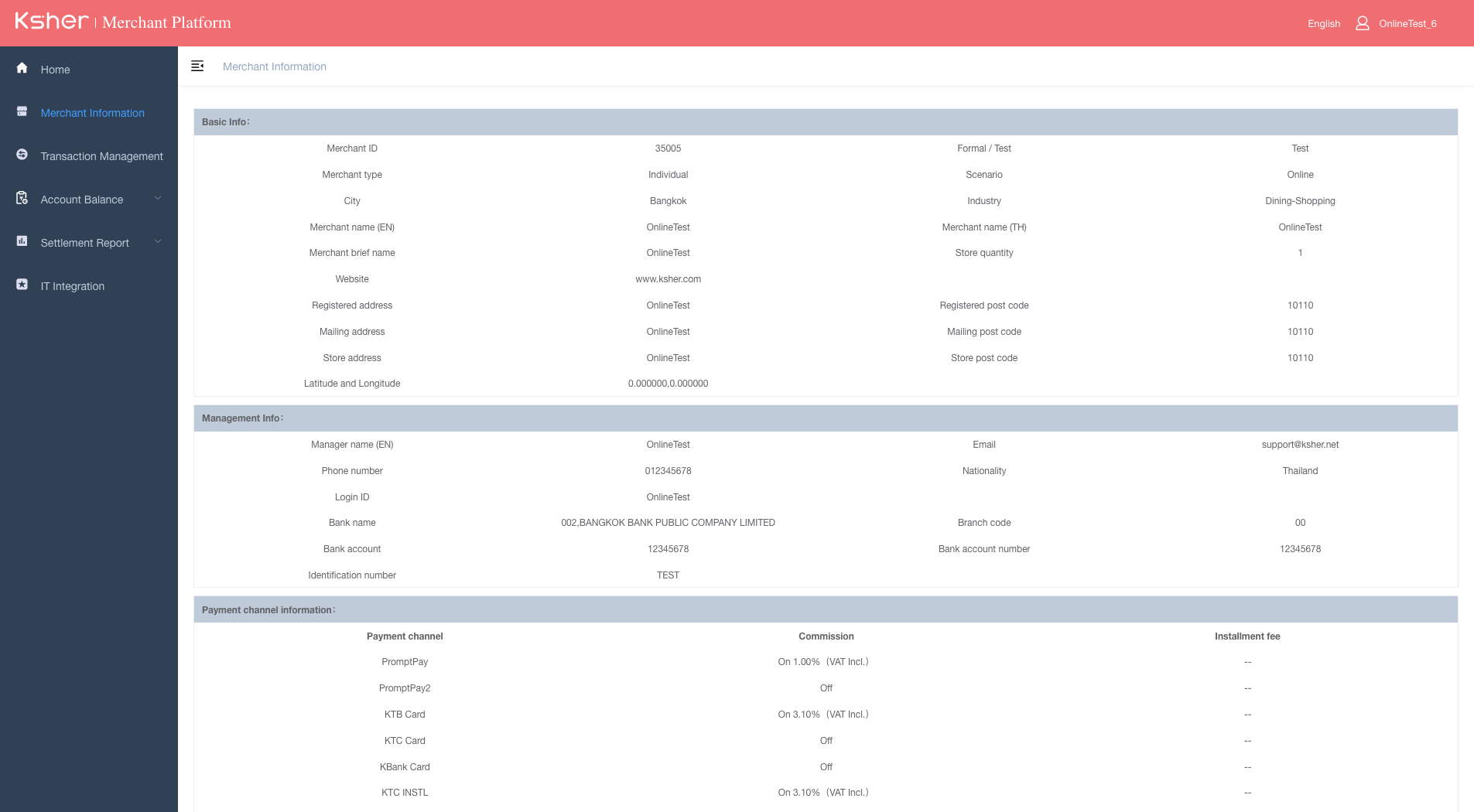
For example:
-
Merchant’s company name
-
Mobile phone number
-
Registered address (which will be shown on tax invoice)
-
Email address for receiving tax
-
Merchant’s bank account
-
Opening payment channels and MDR commission fee of each payment channel.
|
In case that the merchant would like to change the merchant information, kindly contact Ksher Customer Support team. |
Transaction Management
Transaction Management Menu is used for checking transaction status both real-time and trace back.
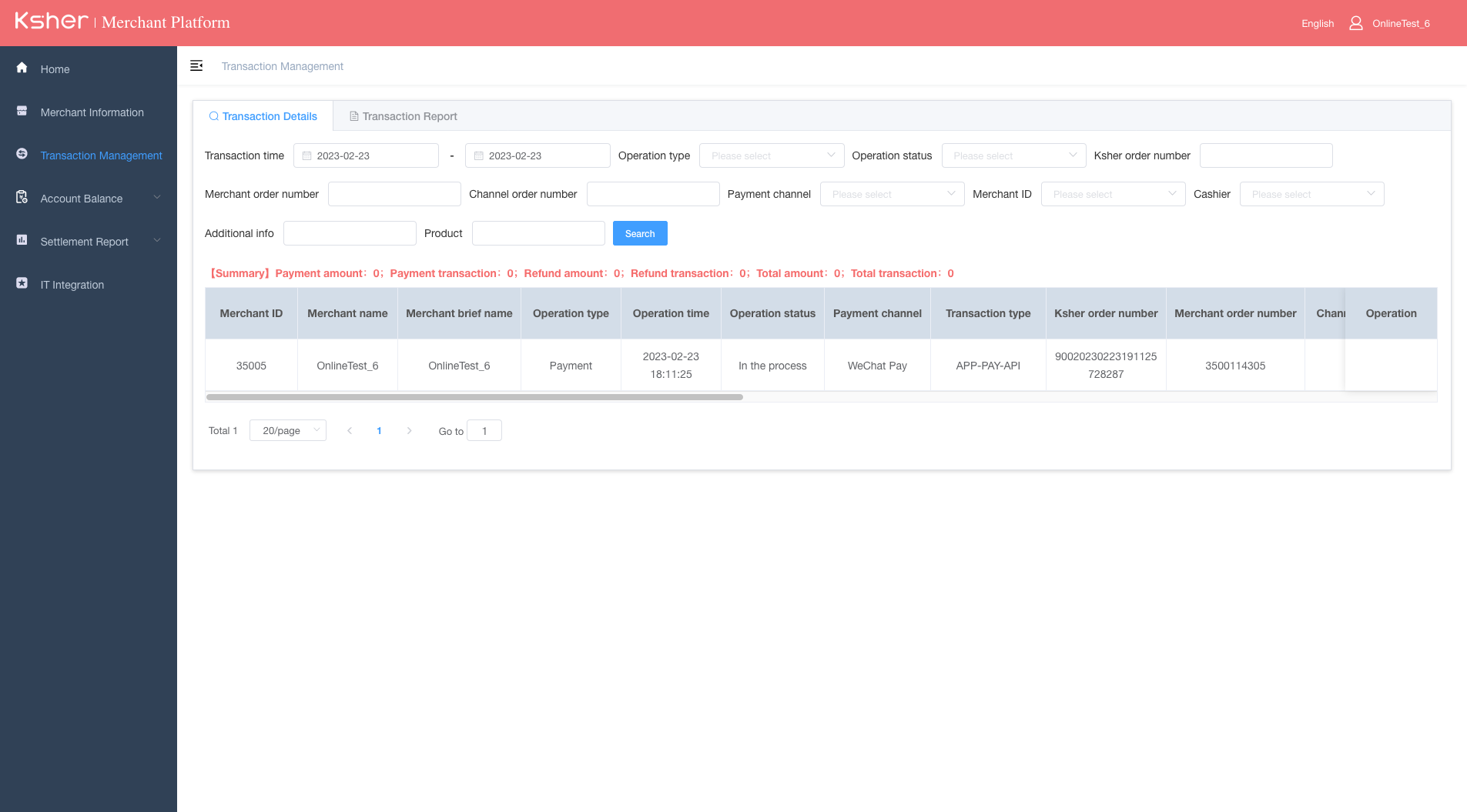
-
Transaction Details: real-time checking transaction result
-
Transaction Report: available to download as excel file
Transaction Details
This menu is used for checking transaction status both real-time and trace back. The details shown in this page:
-
Succeed: the transaction was successfully paid.*
-
In the Process: the transaction was not successfully paid by customer (e.g. customer did not input OTP for payment verification in the final step)
-
Closed: the transaction was not successfully paid by customer as they closed the screen before finishing to proceed a payment.
-
QUICK-PAY-MERCHANT: BsC by merchant platform
-
QUICK-PAY-EDC: BsC by EDC
-
QUICK-PAY-API: BsC by API
-
NATIVE-PAY-UNION: CsB by web (gateway API)
-
NATIVE-PAY-EDC: CsB Promptpay Ksher boss pro
-
NATIVE-PAY-API: CsB by API
-
JSAPI-PAY-QRCODE: static QR Alipay
-
JSAPI-PAY-EDC: dynamic QR Alipay over EDC
-
JSAPI-PAY-UNION:
-
ORDER-REFUND-EDC: refund by EDC
-
ORDER-REFUND-UNION: refund by merchant platform
-
ORDER-REFUND-API: refund by API
Transaction Report
Transaction Report is used for generating transaction report and exporting it as an excel file.
How to create transaction report
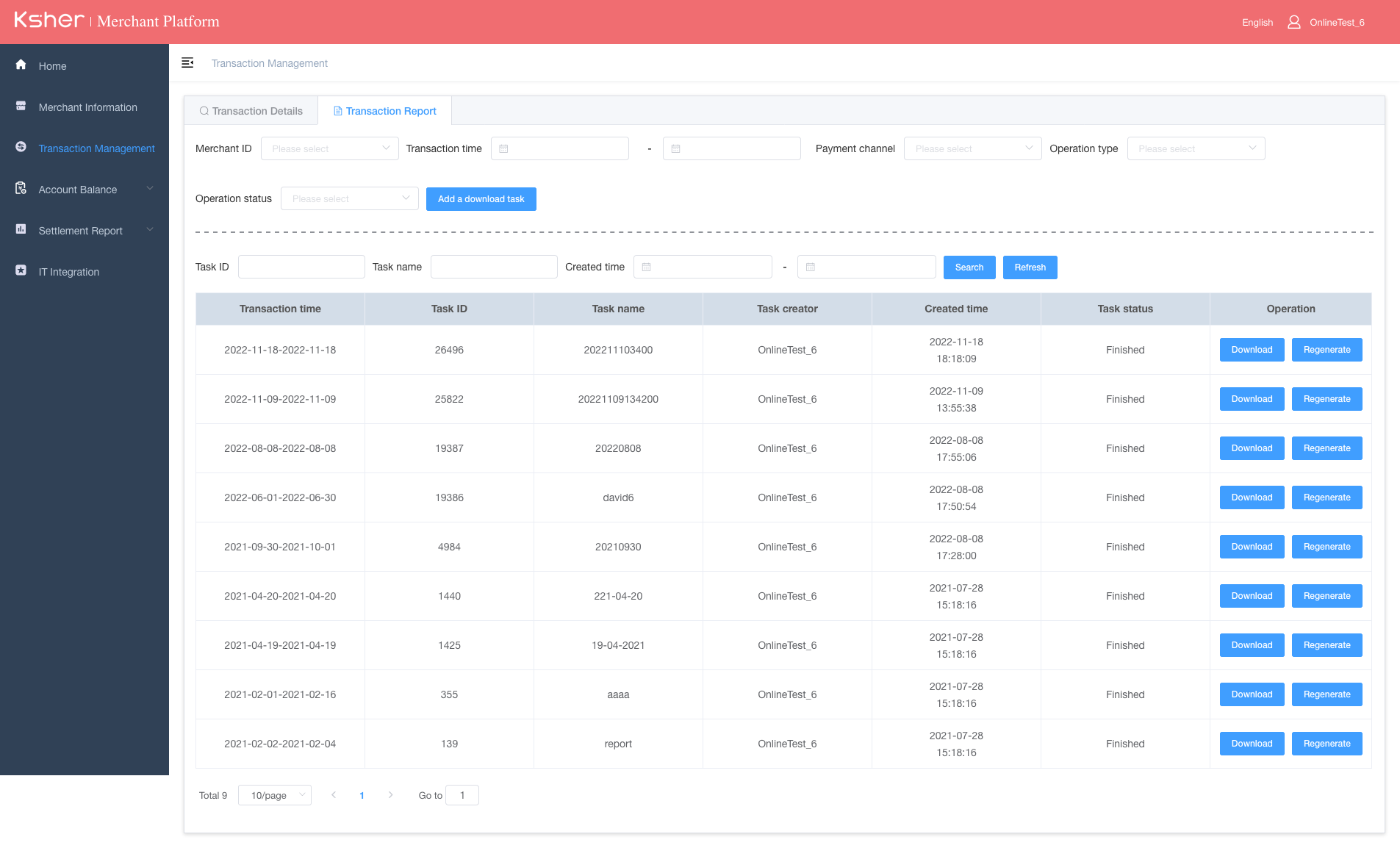
-
Choose Transaction Management > Transaction Report menu

-
Choose the transaction period (each file can be created as a monthly file)
-
you can setup merchant id , transaction time want to export, Payment channel, Operation status

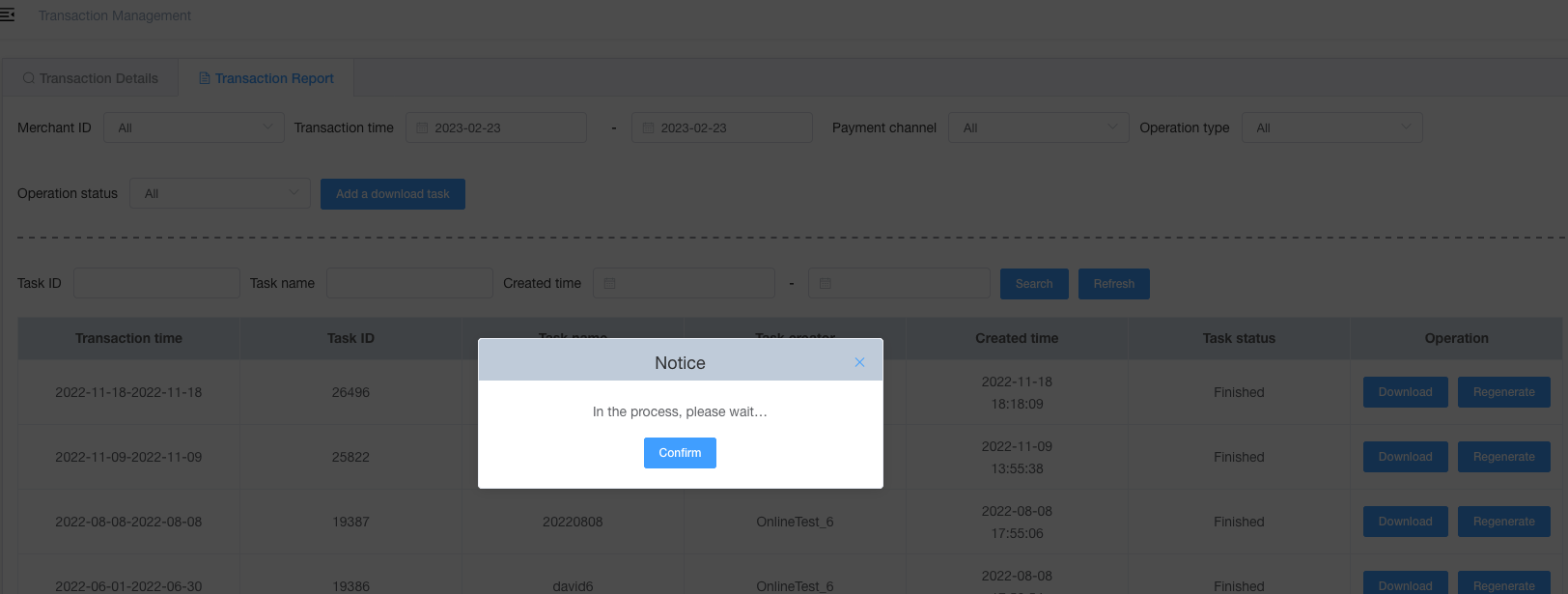
-
Input files name and click confirm.
-
Name download task file all of English and Thai alphabets as well as number will be allowed.
-
Click “Confirm” button.

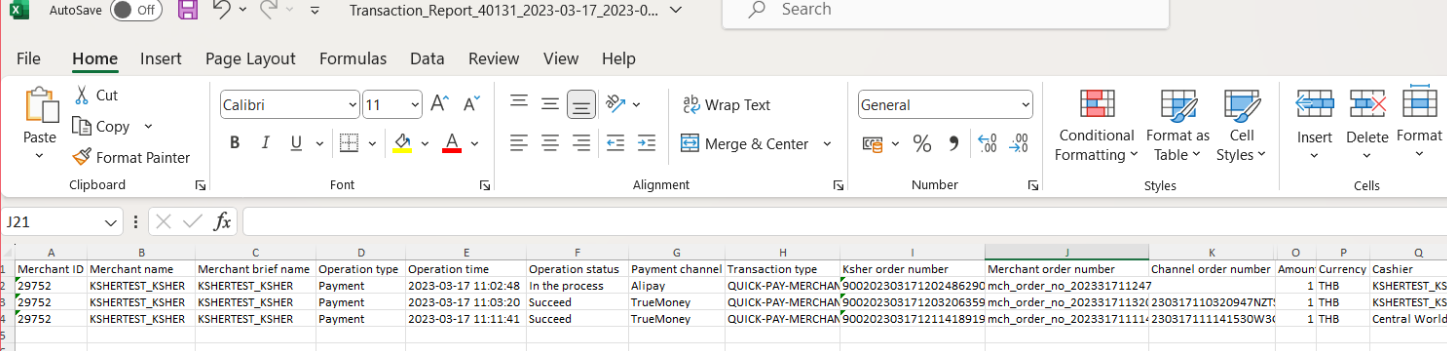
-
Click “Download” button for exporting excel file
|
“Regenerate” button is used for updating the data in case that merchant has already generated transaction report of that period of time. |
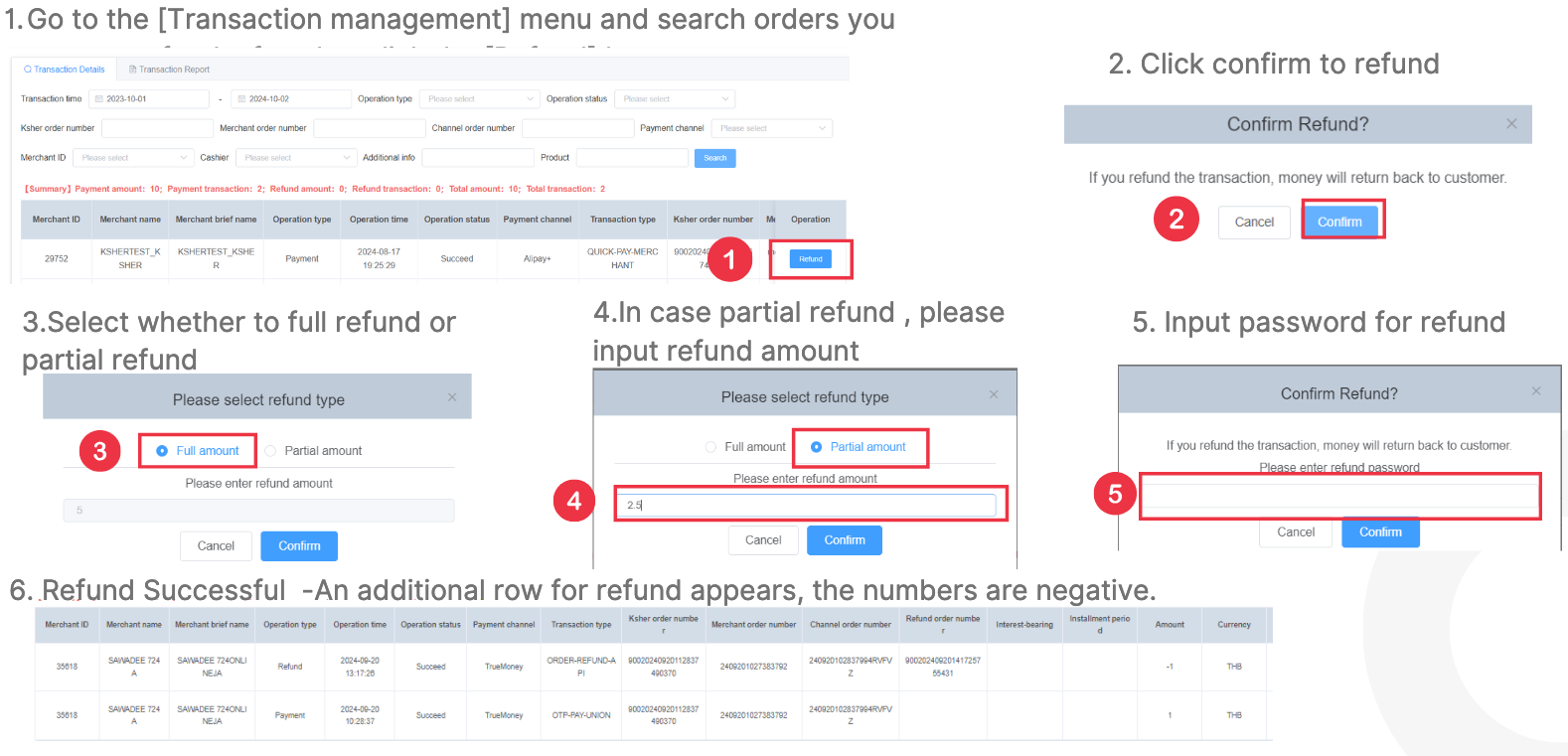
Settlement Report
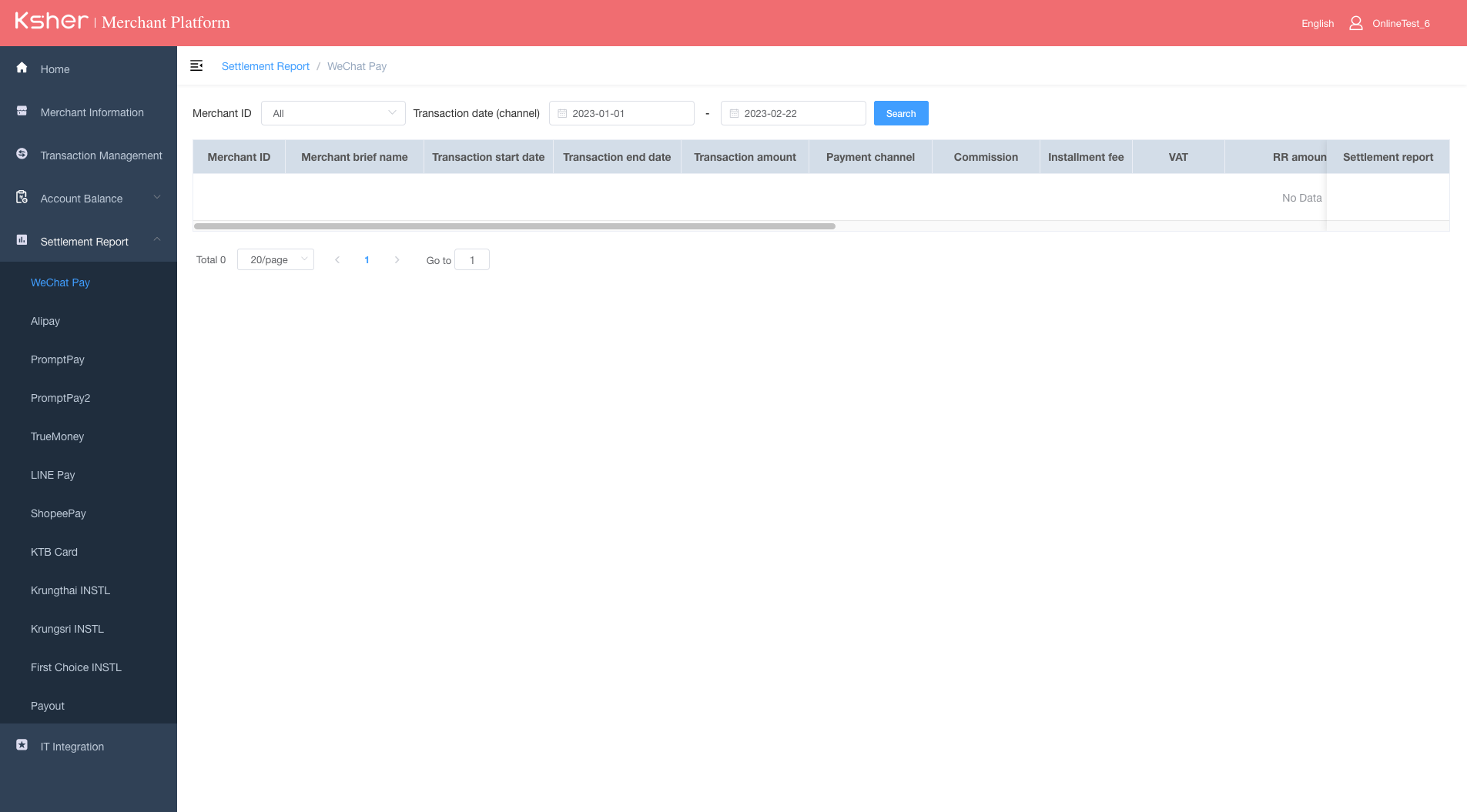
Settlement Report Menu is used for checking settlement details such as transaction amount, MDR commission fee, VAT and tax invoice number for each payment channel
-
In this menu, Ksher will separate the settlement report for each wallet as the transaction amount will be transferred separately.
-
Each row in settlement details shows one settlement period (e.g. transactions on Friday to Sunday will be considered as one settlement period and will be transferred to merchant’s bank account on Monday (T+1 condition))
-
Each row will show the following details:
-
Merchant ID (MID), merchant name and transaction period
-
Transaction amount
-
Payment channel
-
MDR commission fee
-
VAT 7% calculated from MDR commission fee
-
Installment fee (only installment payment channel)
-
Withholding tax 3% that Ksher will be deducted for this amount and send it to Revenue Department for the merchant
-
Tax invoice number
-
It can be downloaded as an excel file to view details of each transaction. Excel file will display only select Payment Channel
Example Settlement Report

All of the settlement details will be shown in the file including
-
Total amount: total transaction amount
-
MDR (%): commission fee of each payment channel as a percentage rate
-
Fee: commission fee per transaction (THB) (Total amount x (MDR/100))
-
VAT: VAT 7% calculated from fee (Fee x(7/100))
-
Settlement Amount: Total settlement amount that Ksher will transfer to merchant (Total amount – fee – VAT) The summary of settlement report will be shown at the bottom of each file.
Example of settlement report excel file for installment payment channel
All of the settlement details will be shown in the file including:
-
Total amount: total transaction amount
-
MDR (%): commission fee of each payment channel as a percentage rate
-
Fee: commission fee per transaction (THB) (Total amount x (MDR/100))
-
Interest-bearing: depending on whom merchant has chosen to pay interest when generating Linkpay (merchant or customer)
-
Installment period
-
Interest rate: the interest percentage rate of each payment channel
-
Interest fee: interest fee per transaction (THB) (Total amount x (installment period) x interest rate)
-
VAT: VAT 7% calculated from fee and interest Fee*7/100) + (interest fee*7/100
-
Settlement Amount: Total settlement amount that Ksher will transfer to merchant (Total amount – fee – interest fee - VAT)
The summary of settlement report will be shown at the bottom of each file.
Account Balance
|
Caution: This feature will use for payout. In case merchant not use payout it will not display. |
Balance Management
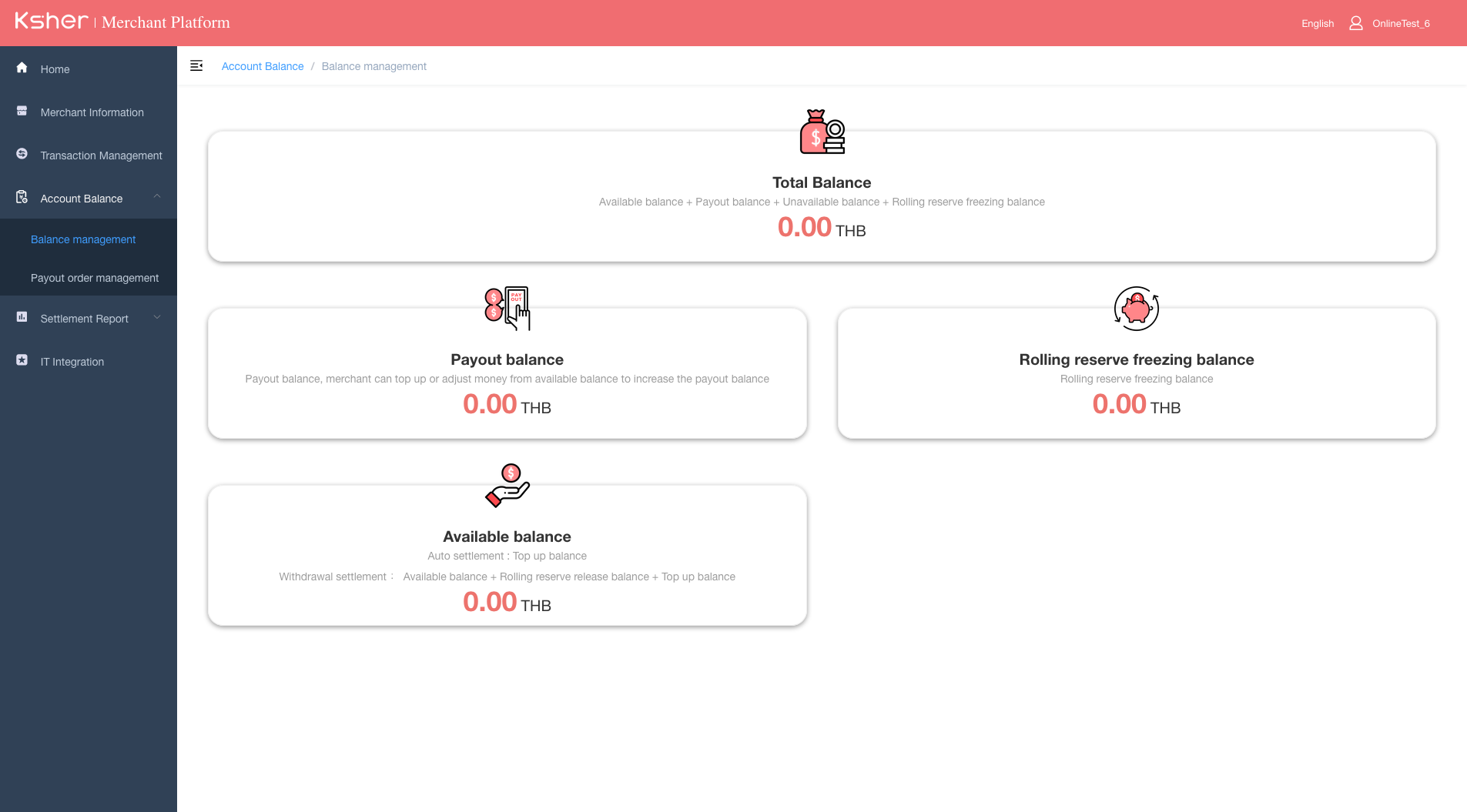
This page for Check the payout balance amount
-
Payout balance: Payout balance, merchant can top up or adjust money from available balance to increase the payout balance
-
Rolling reserve freezing balance: for feature update.
-
Available balance: for feature update.
Payout Order Management
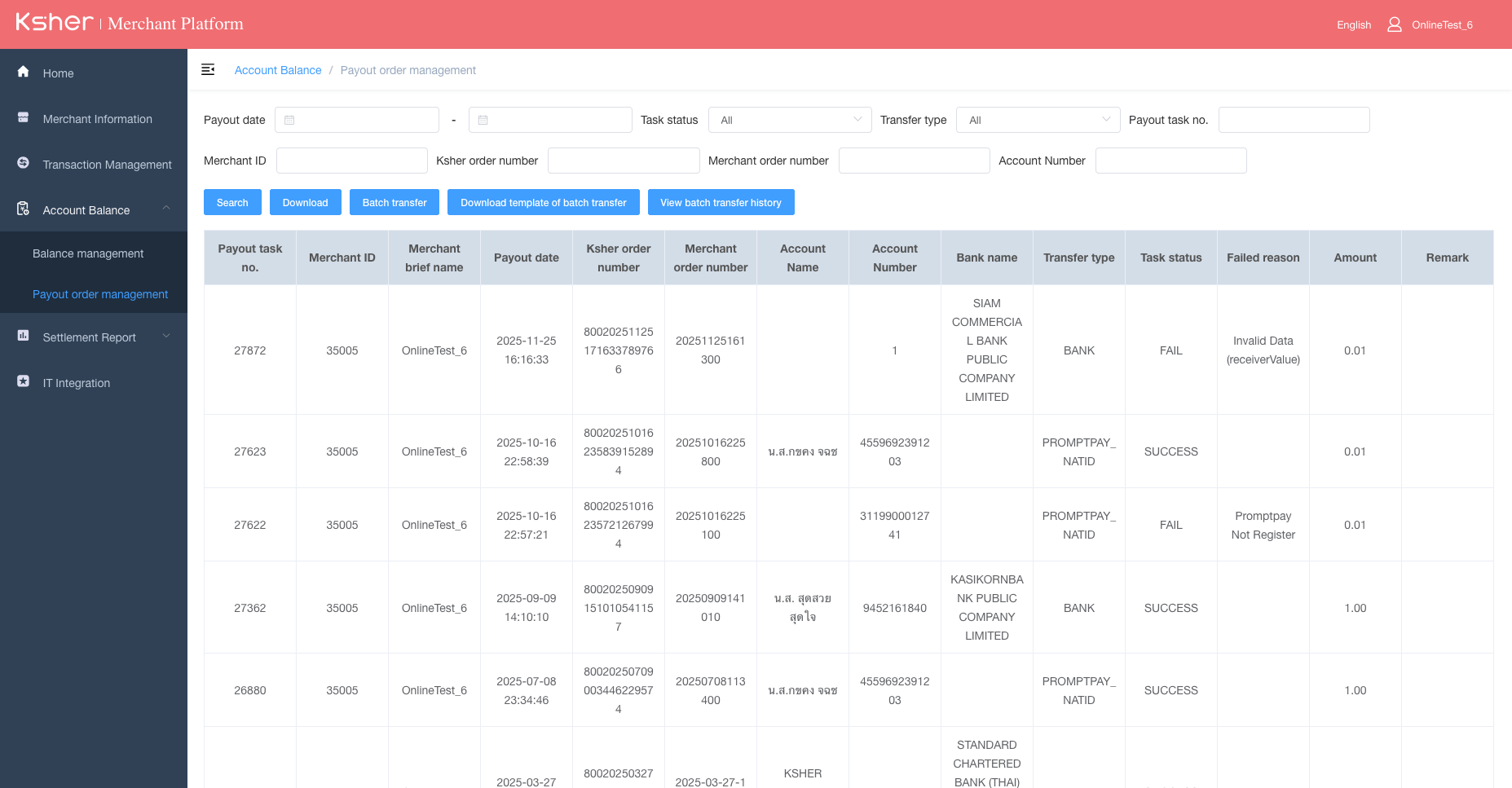
Manage batch transfer processing and review detailed payout information, including the receiver’s bank account or PromptPay details, transfer amount, and transaction status.
Batch transfer processing steps
Step 1: Click to download template of batch transfer
Step 2: Open the payout template file and fill in all required information. (The Excel file includes examples and guidelines for completing each field.)
mch_order_no |
total_fee |
receiver_type |
receiver_no |
receiver_bank_code |
|---|---|---|---|---|
20260101_010101 |
15.50 |
PROMPTPAY_MSISDN |
0812345678 |
- |
mch_order_no |
total_fee |
receiver_type |
receiver_no |
receiver_bank_code |
|---|---|---|---|---|
20260101_020202 |
10.50 |
PROMPTPAY_NATID |
1100220033004 |
- |
mch_order_no |
total_fee |
receiver_type |
receiver_no |
receiver_bank_code |
|---|---|---|---|---|
20260101_010101 |
35.50 |
BANK |
876543210 |
002 |
|
In case the balance amount is insufficient, an error message will appear as shown in the image below after clicking “Confirm” to process the payout. |
Step 3: Upload the completed template into the system to process the payout.
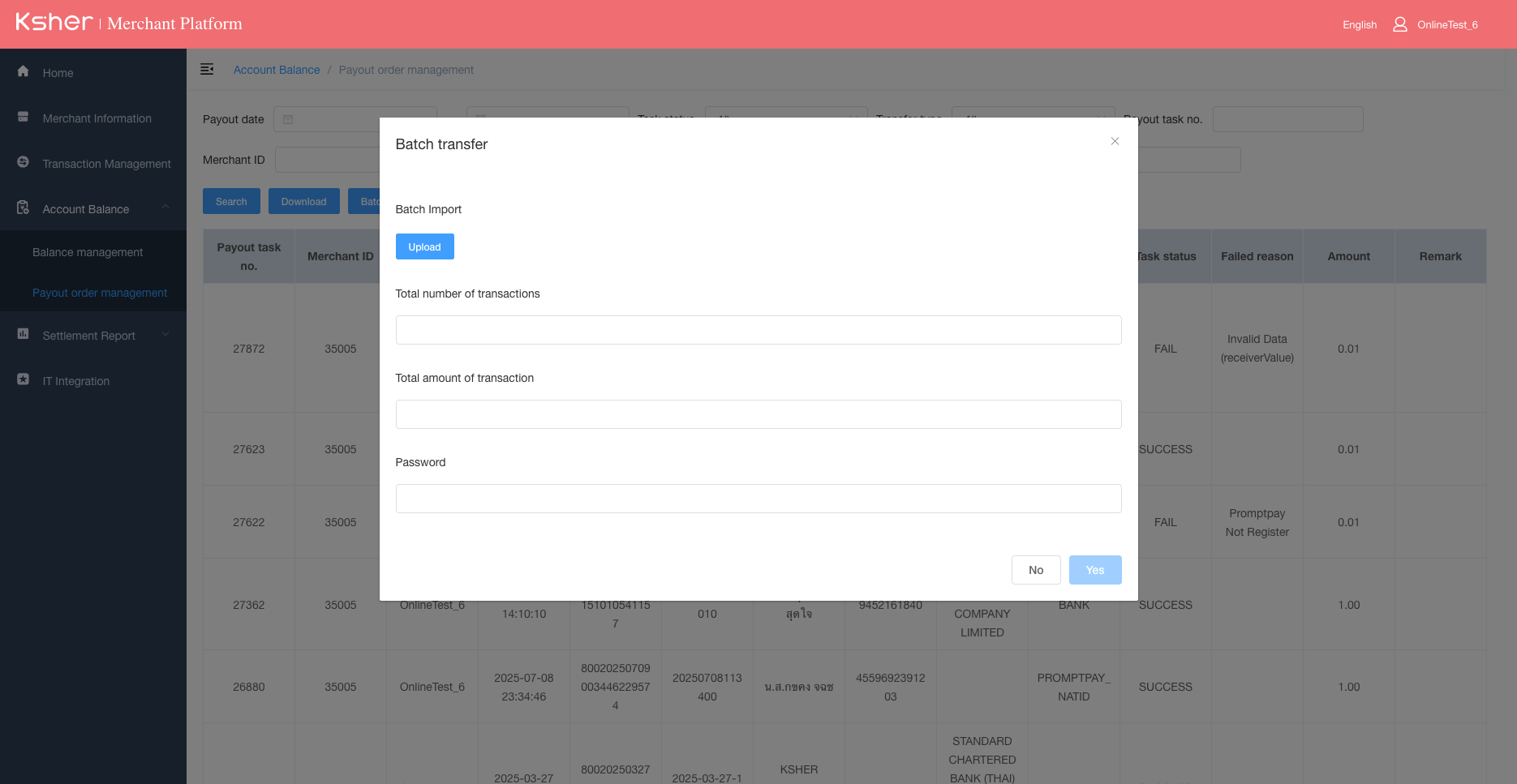
Go to the “Batch Transfer” menu, click Upload, then enter the Transaction Bill No. and Amount. After that, enter your password and click “Yes” to confirm. Once confirmed, the payout will be processed automatically, and the end user will receive the funds immediately.
|
Caution: Please recheck on the information carefully. Cause once input password and click ‘ YES ‘ to process payout, the operation can’t be recall |
Bank Code Information for Payout Processing
Receiving Bank Name/Bank Short Name following BOT page - List of Financial Institutions and Non-Bank
| Bank Code | Bank Short Name | Bank Name | PromptPay (CID/TaxID/Mobile No.) | Account No. |
|---|---|---|---|---|
002 |
BBL |
BANGKOK BANK PUBLIC COMPANY LIMITED |
YES |
YES |
004 |
KBANK |
KASIKORNBANK PUBLIC COMPANY LIMITED |
YES |
YES |
006 |
KTB |
KRUNG THAI BANK PUBLIC COMPANY LIMITED |
YES |
YES |
011 |
TTB |
TMBThanachart Bank Public Company Limited |
YES |
YES |
014 |
SCB |
THE SIAM COMMERCIAL BANK PUBLIC COMPANY LIMITED |
YES |
YES |
017 |
CITI |
CITIBANK, N.A. (CITI), BANGKOK BRANCH |
YES |
YES |
018 |
SMBC |
SUMITOMO MITSUI BANKING CORPORATION |
YES |
YES |
020 |
SCBT |
STANDARD CHARTERED BANK (THAI) PUBLIC COMPANY LIMITED |
YES |
YES |
022 |
CIMBT |
CIMB THAI BANK PUBLIC COMPANY LIMITED |
YES |
YES |
024 |
UOBT |
UNITED OVERSEAS BANK (THAI) PUBLIC COMPANY LIMITED |
YES |
YES |
025 |
BAY |
BANK OF AYUDHYA PUBLIC COMPANY LIMITED |
YES |
YES |
029 |
IOB |
INDIAN OVERSEAS BANK |
NO |
YES |
030 |
GSB |
GOVERNMENT SAVINGS BANK |
YES |
YES |
031 |
GHB |
THE HONGKONG AND SHANGHAI BANKING CORPORATION LIMITED |
YES |
YES |
032 |
DB |
DEUTSCHE BANK AG. BANGKOK BRANCH |
YES |
YES |
033 |
GHB |
THE GOVERNMENT HOUSING BANK |
YES |
YES |
034 |
BAAC |
BANK FOR AGRICULTURE AND AGRICULTURAL COOPERATIVES |
YES |
YES |
039 |
MHCB |
MIZUHO BANK, LTD. BANGKOK BRANCH |
YES |
YES |
052 |
BOC |
BANK OF CHINA (THAI) PUBLIC COMPANY LIMITED |
YES |
YES |
066 |
ISBT |
ISLAMIC BANK OF THAILAND |
YES |
YES |
067 |
TISCO |
TISCO BANK PUBLIC COMPANY LIMITED |
YES |
YES |
069 |
KKP |
KIATNAKIN PHATRA BANK PUBLIC COMPANY LIMITED |
YES |
YES |
070 |
ICBC Thai |
INDUSTRIAL AND COMMERCIAL BANK OF CHINA (THAI) PUBLIC COMPANY LIMITED |
YES |
YES |
071 |
TCRB |
THAI CREDIT BANK PUBLIC COMPANY LIMITED |
YES |
YES |
073 |
LH BANK |
LAND AND HOUSES BANK PUBLIC COMPANY LIMITED |
YES |
YES |
Batch transfer processing operation status checking
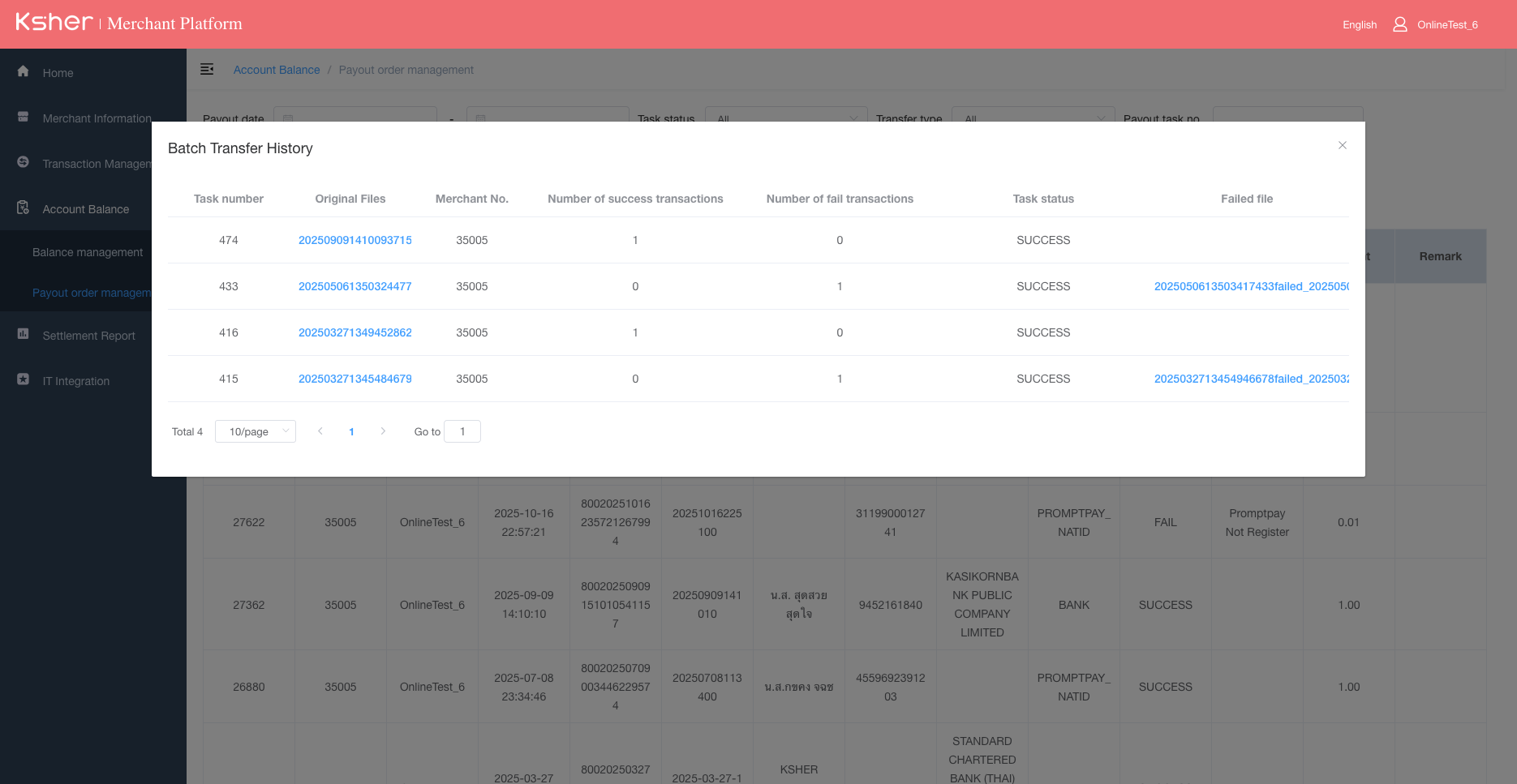
You can check the status of the batch transfer processing by clicking on “View Batch Transfer History.”
This section displays the status of each uploaded task and allows you to download the records as an Excel file.
Check payout detail
You can check the payout details directly on the Payout Order Management page. The information displayed includes:
-
Payout date
-
Ksher order number
-
Merchant order number
-
Account name
-
Account number
-
Transfer type (Bank / PromptPay Mobile / PromptPay ID)
-
Task status
-
Fail reason (if any)
-
Transfer amount
IT Integration
For Merchants use API, you can download the private key from this menu. Please see at Download Private key / Public key
|
Caution: If merchant use API Integration. Make sure you checked with your IT team it will not impact with current running system. After reset the old private key will not able to use. |